
15 Common Technical SEO Issues And How To Fix Them In 2026
Most websites are bleeding organic traffic because of technical SEO issues they don’t even know about. An SE Ranking study of over 418,000 site audits found that 96% of websites fail at least one Core Web Vital metric, and roughly 52% have broken links sitting undetected. These aren’t edge cases. They’re the norm.
Technical SEO issues are the behind-the-scenes problems (broken crawl paths, missing tags, slow servers, bad redirects) that stop Google from finding, understanding, and ranking your pages. You can write the best content in your industry and still get buried on page four if your technical foundation is cracked. I’ve run audits on hundreds of sites over the past decade, and the pattern repeats: businesses pour money into content and backlinks while invisible technical debt quietly eats their rankings alive.
This article covers the 15 most common technical SEO problems I see in audits, ranked by how much damage they actually cause. Every fix includes a specific how-to. We won’t cover keyword research, content strategy, or off-page tactics here. Those matter, but none of them work if crawlers can’t properly access your site.
What Is Technical SEO?
Technical SEO is the practice of configuring your website and server so search engines can crawl, index, and rank your pages without friction. It covers page speed, crawl directives, URL structure, schema markup, mobile rendering, and security protocols. It does not include content creation, keyword targeting, or link building.
And here’s the part most people miss in 2026: technical SEO now directly affects whether AI search engines cite your content. Research from Dan Taylor at Salt Agency, published in Search Engine Journal in November 2025, analyzed 2,138 websites and found a measurable drop in AI Mode citations for sites with slow load times. Google’s AI Overviews pull from pages that are fast, well-structured, and easily parseable. If your technical foundation is weak, you’re invisible to both traditional and AI-powered search.

1. Does Your Site Still Run on HTTP?
If your site doesn’t use HTTPS, Chrome displays a “Not Secure” warning before visitors even see your homepage. That’s an instant trust killer. Google confirmed HTTPS as a ranking signal back in 2014, and in 2026 there’s zero excuse for running an unsecured site.
The fix is simple. Purchase an SSL certificate from a Certificate Authority (many hosts include free ones through Let’s Encrypt), install it, and set up a 301 redirect from HTTP to HTTPS. Check that all internal links, canonical tags, and sitemap URLs point to the HTTPS versions afterward. The whole process takes a developer less than an hour for most sites.
2. Your Site Isn’t Indexed Correctly
Pages that aren’t in Google’s index don’t exist as far as search is concerned. Type “site:yourdomain.com” into Google and compare the result count against how many pages you actually have. A big mismatch in either direction signals a problem.
Too few indexed pages usually means something is blocking crawlers (a robots.txt disallow, a stray noindex tag, or missing internal links creating orphan pages). Too many indexed pages often means junk URLs, parameter variations, or old staging content got crawled. A SEMrush study of 50,000 domains found that 69% of websites have orphan pages, which are pages with zero internal links pointing to them. Those pages waste crawl budget and rarely rank for anything.
Submit your sitemap through Google Search Console, use the URL Inspection tool on priority pages, and audit for orphans quarterly.
3. Is Your XML Sitemap Missing or Outdated?
An XML sitemap tells Google which pages on your site matter and when they were last updated. Without one, crawlers have to discover pages entirely through links, which is slow and unreliable on larger sites.
Check by navigating to yourdomain.com/sitemap.xml. If you land on a 404, you don’t have one. WordPress users can generate sitemaps automatically through Yoast or Rank Math. For custom-built sites, your developer can create one or you can use a sitemap generator tool. The bigger issue I see is stale sitemaps. If yours still lists pages you deleted six months ago, Google is wasting time requesting URLs that don’t exist. Keep it current.
4. Missing or Misconfigured Robots.txt
Your robots.txt file controls which parts of your site search engines can access. A missing file is a yellow flag, but an incorrectly configured one can be catastrophic. I’ve seen a single line, “Disallow: /”, accidentally left over from a staging environment that blocked an entire 3,000-page site from Google’s index for two weeks.
Check yours at yourdomain.com/robots.txt. If it contains “User-agent: * Disallow: /” without good reason, contact your developer immediately. For complex e-commerce sites with faceted navigation, review the file line by line with someone who understands which URL patterns should and shouldn’t be crawled. A quick robots.txt audit can prevent months of lost visibility.
5. Are Meta Robots NOINDEX Tags Blocking Your Pages?
NOINDEX is supposed to keep low-value pages (thin tag archives, internal search results) out of Google’s index. When it’s applied to the wrong pages, it’s one of the most destructive technical SEO issues you can have. I’ve personally seen it wipe out 80% of a site’s organic traffic overnight after a developer forgot to remove staging noindex tags before launch.
Right-click any page, select “View Page Source,” and search for “noindex.” Better yet, run a full site crawl with Screaming Frog or a similar tool to catch every instance across thousands of pages. If you find noindex on pages that should rank, either remove the tag entirely or change it to “index, follow.” Don’t trust that someone already handled this during launch. Verify it yourself.
6. How Much Is Slow Page Speed Costing You?
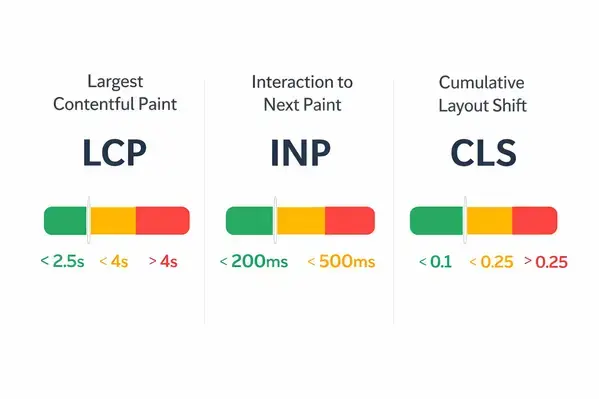
Roughly 40% of users abandon a site that takes more than three seconds to load. That stat has been repeated for years, but here’s what changed recently: page speed now affects AI search visibility too. Dan Taylor’s analysis of 2,138 sites showed that slower-loading pages get cited far less in Google’s AI Mode responses. So you’re losing traffic from both traditional results and AI Overviews if your site drags.
Run your key pages through Google PageSpeed Insights. Look at both mobile and desktop scores. The most common fixes are compressing images (switch to WebP format), enabling browser caching, minifying CSS and JavaScript, and reducing server response time. SE Ranking’s audit data shows that 96% of sites fail at least one Core Web Vital. Core Web Vitals scores affect your page experience signal in Google’s algorithm, so this isn’t optional.
7. Multiple Versions of Your Homepage
Here’s a problem that’s been around for years and still catches people off guard. Your site might be accessible at yourdomain.com, www.yourdomain.com, yourdomain.com/index.html, and the HTTP variants of each. That’s potentially four or more URLs serving the same content, and Google might index all of them.
This splits your ranking signals across multiple URLs instead of concentrating them on one. The fix: set up 301 redirects so every variation points to a single canonical URL. Then set your preferred domain in Google Search Console. Test every combination manually to confirm they all redirect properly.
8. Why Incorrect Rel=Canonical Tags Create Ranking Confusion
The rel=canonical tag tells Google which version of a page is the “original” when similar or identical content exists at multiple URLs. E-commerce sites with filtered product pages generate this problem constantly. A category page filtered by color, size, or price creates a new URL for each combination, but the content is nearly identical.
When canonical tags point to the wrong page (or to a 404, or to themselves in a loop), Google gets confused about which URL deserves the ranking equity. Spot-check your source code for canonical tags on key pages. If you’re on Shopify, WordPress, or another CMS, these tags are often generated automatically, but “automatically” doesn’t mean “correctly.” Audit them during every quarterly review.
9. Duplicate Content Across Your Site
Duplicate content confuses crawlers and dilutes your ranking signals. It’s different from plagiarism. Most duplicate content problems are accidental: CMS platforms generating multiple URL versions, print-friendly pages, or the same product descriptions appearing across category and product pages.
The fixes depend on the cause. Proper canonical tags handle parameter-based duplicates. 301 redirects consolidate old URLs. Hreflang tags address international sites serving identical content in the same language. Google’s own documentation recommends using these tools together. Don’t ignore duplicate content because it “seems minor.” On sites with thousands of pages, it compounds fast.
10. Are You Missing Image Alt Tags?
Every image without an alt tag is a missed signal to Google about what that page contains. Alt tags also make your site accessible to screen readers, which matters both ethically and for compliance. Yet in most audits I run, somewhere between 30% and 50% of images are missing alt text entirely.
Run a site crawl to identify every image missing alt text. Write descriptive, keyword-relevant alt tags (under 125 characters) that actually describe what the image shows. Don’t keyword-stuff them. “Blue ceramic tile backsplash in modern kitchen” beats “best kitchen tiles SEO keywords cheap tiles.” Set up a process so every new image uploaded gets alt text before publishing.
11. How Do Broken Links Damage Your Rankings?
Broken links, both internal and external, send users to dead ends and waste crawl budget. SE Ranking found that roughly 52% of websites have broken links, and most site owners don’t realize it until an audit surfaces them. Every broken internal link is a hole in your site’s link equity flow.
Check internal links whenever a page is removed, redirected, or renamed. For external links, run quarterly audits because third-party pages disappear without warning. Replace broken links with updated URLs or remove them entirely. If you’re working with an experienced SEO team, this should be part of your standard operating procedures.
12. Not Using Enough Structured Data
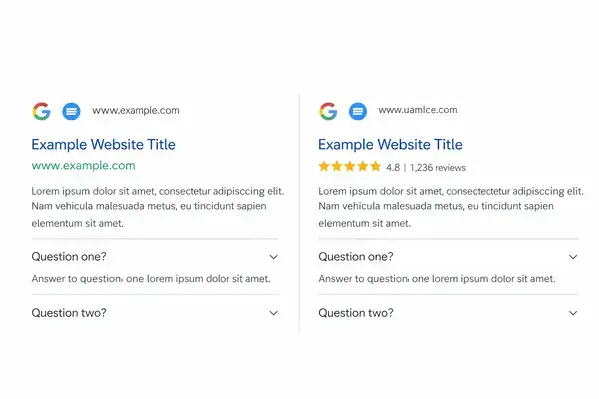
Structured data (schema markup) tells Google and AI search engines exactly what your content represents: a recipe, an FAQ, a product, an event. Pages with structured data are eligible for rich snippets in search results, which can increase click-through rates by 20–30% according to multiple industry analyses.
And here’s a contrarian take that most guides skip: structured data is now more valuable for AI visibility than for traditional rankings. AI Overviews and LLM-based search tools rely on structured, machine-readable signals to determine which sources to cite. If your pages don’t have schema markup, you’re harder for these systems to parse and reference. Implement FAQ schema, article schema, product schema, and local business schema wherever they apply. Test your markup in Google Search Console regularly to catch errors.
13. Is Your Site Mobile-Friendly?
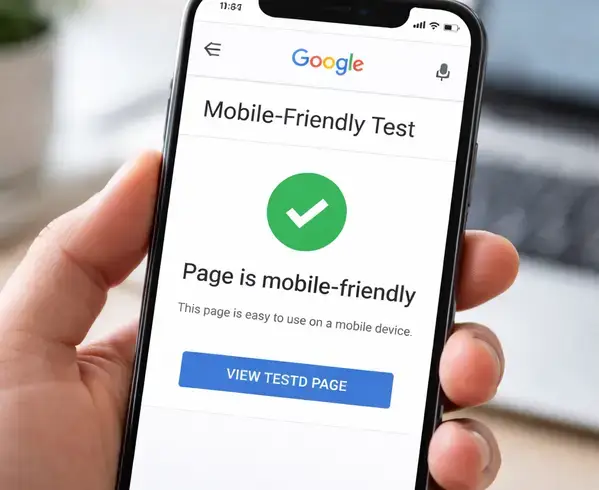
Google uses mobile-first indexing, which means the mobile version of your site is the one that gets crawled and ranked. If your mobile experience is clunky, slow, or missing content that exists on desktop, your rankings suffer everywhere.
Responsive design handles this for most sites. But if you’re running a separate m-dot mobile site, you need to verify that all metadata, hreflang tags, structured data, and internal links mirror what’s on your desktop version. Google has been explicit about this: content that exists only on your desktop site won’t get indexed under mobile-first indexing.
14. Missing or Poorly Written Meta Descriptions
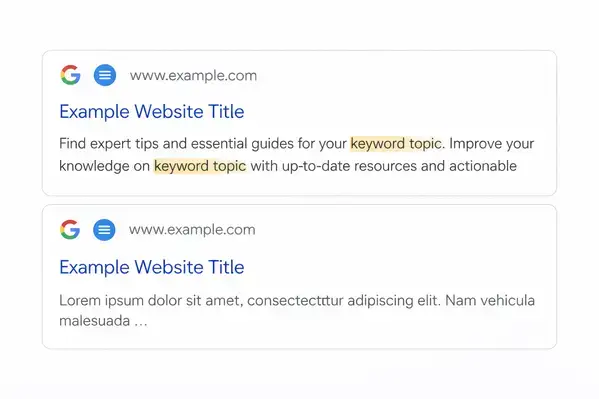
Meta descriptions don’t directly affect rankings, but they directly affect click-through rate. A well-written meta description acts like ad copy for your organic listing. A missing one lets Google auto-generate a snippet, which is usually a random sentence that doesn’t sell anything.
Run a site audit to find pages missing meta descriptions. Prioritize high-traffic and high-value pages first. Write unique descriptions under 160 characters that include your target keyword naturally and give a clear reason to click. Update them whenever you significantly change a page’s content. This takes 30 seconds per page and the CTR impact is measurable.

15. Users Landing on Pages in the Wrong Language
If your site serves content in multiple languages or targets multiple countries, hreflang tags tell Google which version to show each user. Getting this wrong means a Spanish-speaking user in Mexico might land on your English page, bounce immediately, and never come back.
Hreflang implementation is detail-heavy and errors are common, even among experienced developers. Every page needs the correct language-country code, and every hreflang tag must have a matching return tag on the referenced page. Use Google’s International Targeting report in Search Console to catch errors, and consider using Aleyda Solis’s free hreflang tag generator to build the code correctly from the start.
Which Technical SEO Issues Should You Fix First?
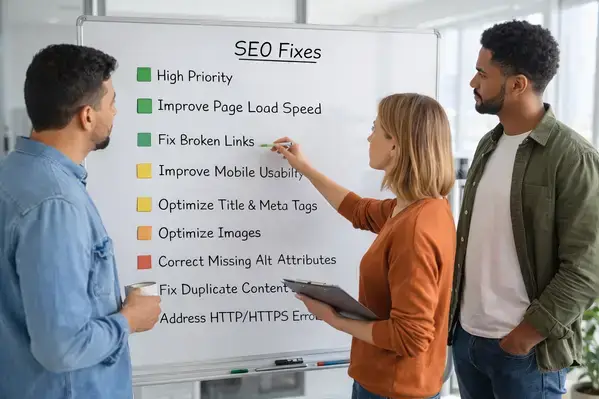
Not every issue carries the same weight. Here’s how I prioritize in audits, based on revenue risk and effort to fix:
| Issue | Severity | Fix Effort | Fix First If… |
| NOINDEX on live pages | Critical | Low | Traffic dropped suddenly |
| Robots.txt blocking pages | Critical | Low | Pages aren’t indexed |
| No HTTPS | High | Low | Chrome shows ‘Not Secure’ |
| Slow page speed | High | Medium–High | Bounce rate is above 50% |
| Broken internal links | Medium | Low–Medium | Large or older sites |
| Missing structured data | Medium | Medium | You want AI citations |
| Missing alt tags | Low | Low | Accessibility compliance |
| Hreflang errors | High | High | Multi-language sites only |
The SEO services market hit $83.98 billion in 2026 according to Mordor Intelligence. A professional technical audit runs $500–$2,000 for small and mid-size sites, and up to $18,000 for complex enterprise audits (EZ Rankings, February 2026). One documented case study from Growth Rocket in 2026 showed a 22% increase in organic sessions and 34% more high-value pages indexed within 90 days of fixing technical issues. The ROI is real and measurable when you fix the right things in the right order.
Organic search still drives about 44.6% of B2B revenue, making it roughly five times more cost-effective than paid channels, per the 2025 Organic Traffic Crisis Report. Ignoring your technical SEO health is leaving money on the table every month.
FAQs
Do I need to fix every issue in a technical SEO audit?
No. Prioritize by revenue risk and effort. A SEMrush study of 50,000 domains found 69% of websites have orphan pages, but only the ones on high-traffic URLs need immediate attention. Fix critical blockers first (noindex errors, robots.txt blocks), then work down the severity list.
How do I know if my website has technical SEO issues?
Run a crawl using Screaming Frog, Ahrefs, or Google Search Console. SE Ranking data from 418,000+ audits shows that 52% of sites have broken links and 96% fail at least one Core Web Vital. If you’ve never audited your site, you almost certainly have issues.
Does page speed still matter for SEO in 2026?
Yes, more than before. Page speed now affects AI search citations in addition to traditional rankings. Dan Taylor’s November 2025 analysis of 2,138 sites found slower pages get cited significantly less in Google’s AI Mode. Google’s Core Web Vitals remain a confirmed ranking factor.
How long does a technical SEO audit take?
A professional audit takes 25 to 40 days depending on site complexity. Small sites with under 500 pages can sometimes be audited in a week. Enterprise sites with 100,000+ pages and JavaScript rendering need a full month-plus. Budget $500 to $2,000 for small-to-mid sites, up to $18,000 for enterprise.
Will fixing technical SEO issues recover traffic after a Google update?
It depends on why traffic dropped, but the data is encouraging. A 2026 Growth Rocket case study documented a 22% increase in organic sessions and 34% more indexed high-value pages within 90 days of fixing technical issues. If your drop was caused by technical debt, fixes absolutely help.
What are orphan pages and why do they hurt SEO?
Orphan pages are URLs with zero internal links pointing to them. Google can only find them through the sitemap (if listed) or external links, which means they’re low-priority for crawlers. SEMrush found 69% of sites have them. They waste crawl budget and rarely rank. Fix them by adding contextual internal links from relevant pages.
Is technical SEO different for AI search engines?
Yes. AI-powered search tools like Google’s AI Overviews and ChatGPT depend on fast, well-structured, schema-marked content to generate citations. Page speed and structured data now correlate with AI citation frequency more than they do with traditional rankings, per Search Engine Journal’s 2025 reporting.

Michael Vale has over 5 years of experience helping clients improve their business visibility on Google. He combines his love for teaching with his entrepreneurial spirit to develop innovative marketing strategies. Inspired by the big AI wave of 2023, Michael Vale now focuses on staying updated with the latest AI tools and techniques. He is committed to using these advancements to deliver great results for his clients, keeping them ahead in the competitive online market.